What Does 1 to 5 Devices Mean on an IPTV Plan in Real Life?
When an IPTV plan says it supports “1 to 5 devices,” it can sound as if you can install the app on that many TVs, phones, or streaming boxes. Usually, though, the important limit is not how many devices have the app installed. It is how many streams can play at the same time using your account.
That distinction matters in a busy Canadian household. One person may want a hockey game in the living room while someone else watches a different channel upstairs. A parent might also want to check a programme on a tablet. Whether those things work depends on the plan’s simultaneous-stream limit, the provider’s account rules, your home internet connection, and the devices you use.
This guide explains what “1 to 5 devices” can mean in everyday use, how to think about iptv devices at once, and what to check before paying. It also covers CAD pricing, Interac e-Transfer, trials and refunds, compatibility, setup, and the often-asked question: can you watch two tvs different channels iptv at the same time?
“Devices” Often Means Simultaneous Streams
A device is the screen or player used to watch: for example, a Samsung smart TV, a Fire TV Stick, an Android TV box, an Apple TV, or a phone. A stream is the video playing through the service. Providers may use “devices,” “connections,” or “streams” differently, so read the plan wording rather than assuming the terms are interchangeable.
In many plans, a one-device allowance means one active stream at a time. You might be able to install the app on several compatible devices, but only one can play a channel at once. A five-device allowance may permit up to five simultaneous streams, subject to the provider’s conditions. It does not necessarily mean five permanent logins, five separate accounts, or five devices that can be used from different households.
Plan limit What it may allow at once Everyday example 1 stream One active programme One TV playing a live channel 2 streams Two active programmes Two TVs watching different channels 3 streams Three active programmes Two TVs and a tablet streaming together 5 streams Up to five active programmes, if the provider permits it Several household members watching separate screensThis table is a general explanation, not a guarantee about a particular service. Ask the provider whether its advertised number means simultaneous streams, registered devices, or something else. Also ask whether there are location restrictions or limits on changing devices.
Can Two TVs Watch Different Channels?
Yes, two tvs different channels iptv is possible when the plan allows at least two simultaneous streams and both TVs are set up correctly. Each TV needs a compatible app or streaming device, and both viewers need a stable connection. With a one-stream plan, starting a second channel may stop the first stream, show a connection-limit message, or fail to load.
Do not assume that a two-screen plan automatically gives you two independent viewing experiences in every situation. Check whether both streams can run on the same home network, whether they must be in the same household, and whether a provider restricts the account to specific devices. Some services count a stream as active for a short time even after you exit a channel, so closing the app properly can help when you reach a limit.

How to Estimate the Number of Streams You Need
- One stream: Usually enough if one person watches at a time and the household is happy to share the main screen.
- Two streams: A practical starting point for a couple or a household with two TVs that are sometimes used together.
- Three streams: Consider this if two TVs and a mobile device may be active at the same time.
- Four or five streams: May suit a larger household, but only if the provider allows that many concurrent connections and your internet can support them.
Think about your real routine, not just the number of screens in the house. If the spare TV is only used once a month, you may not need a five-stream plan. If your family regularly splits up for different sports or programmes, a higher limit could be useful.
Bandwidth Matters as Much as the Device Limit
A plan’s stream allowance tells you how many plays may be permitted; it does not guarantee that your broadband connection can deliver them smoothly. Every active stream uses bandwidth. Higher-resolution video generally needs more than lower-resolution video, and Wi-Fi interference, busy evening traffic, older routers, and other household use can affect playback.
As a rough planning guide, allow around 5–10 Mbps per HD stream and around 15–25 Mbps per 4K stream, depending on compression and service quality. These are estimates, not promises. Two HD streams might therefore need roughly 10–20 Mbps of steady capacity for the video alone. Two 4K streams could need around 30–50 Mbps, before accounting for gaming, video calls, downloads, and other devices. Your available speed at the TV matters more than the number on your internet plan if Wi-Fi is weak in that room.
For the main TV, I prefer wired Ethernet where practical. It avoids many Wi-Fi dropouts and makes troubleshooting easier. If wiring is not convenient, use a strong 5 GHz Wi-Fi signal, place the router in an open central spot, and avoid hiding it in a cabinet. For best iptv app for android tv every buffering issue, note the time it happens: does it occur only during the evening, during a particular live event, or throughout the day? That timing can help separate a local Wi-Fi problem from congestion elsewhere.
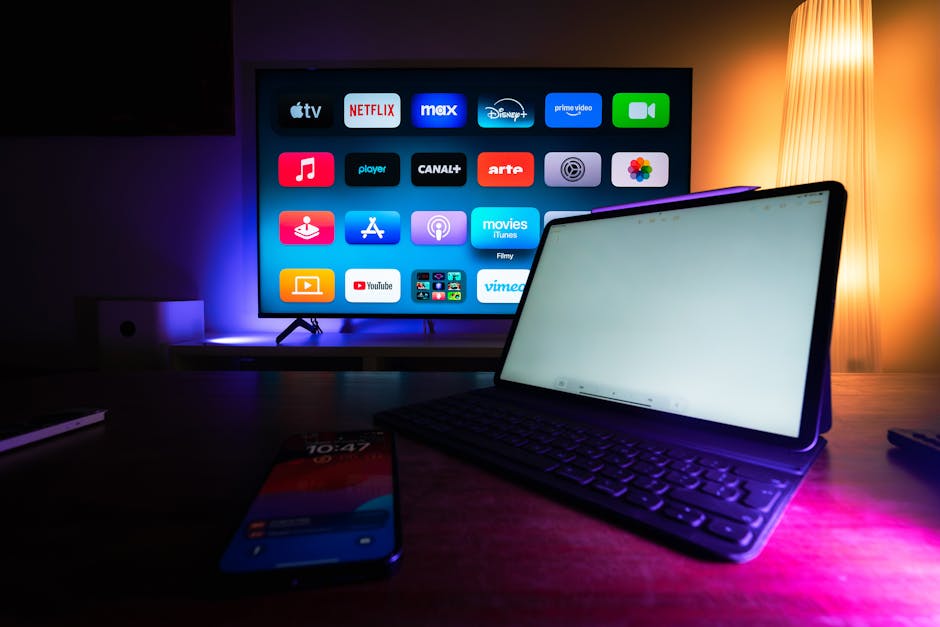
Check CAD Pricing and Payment Terms
Before subscribing, check that the price is clearly stated in Canadian dollars. A listing that says only “$” can be ambiguous, especially when a provider serves customers in multiple countries. Confirm the total CAD amount, the subscription period, any taxes or extra device fees, and whether the price changes at renewal. Avoid relying on a headline offer if the checkout page shows a different currency or adds an unexplained charge.
If you are considering IPTV Jacom, confirm its current plan details and payment instructions directly before sending money. If the provider accepts only Interac e-Transfer, make sure you understand how payment is matched to your order, what confirmation you will receive, and where support is available if activation is delayed. Interac e-Transfer is a payment method, not a guarantee of service quality or refund eligibility. Keep your receipt and the provider’s written terms.
Also check whether a plan renews automatically. Ask how to cancel, how much notice is required, and whether you will receive a reminder before renewal. Clear CAD pricing and straightforward cancellation terms are more useful than a large channel-count claim on its own.
Trials, Refunds, and What to Confirm First
A free 24-hour trial can be a useful way to test the service on the actual TV and internet connection you plan to use. A 7-day refund window may offer additional time to assess a subscription, but the exact conditions matter. These offers can change, and a trial may have limitations that do not apply to a paid account—or the other way around.
Before paying, confirm in writing whether the free 24-hour trial is currently available, when the 24 hours begin, which devices it supports, and whether payment details are required. For a 7-day refund window, ask when the seven days start, whether the window applies to every plan, what steps are required to request a refund, and how long processing takes. Do not treat an advertised trial or refund period as guaranteed until you have reviewed the current terms.
Use a trial to test the things that matter to your household: a live channel, a second simultaneous stream if you need one, playback on your main TV, and performance during your usual busy viewing time. Write down the time if buffering happens, along with the device and connection used. That gives support a useful starting point.
Device Compatibility: Samsung and Other Common Options
Compatibility depends on the provider’s supported apps and the exact model of your device. Some newer Samsung smart TVs may support a suitable IPTV player app, while older models may not. A TV app is not the same thing as a television channel service: you may need a separate app, login details, here and a playlist or activation method supplied by the provider.
Other common options include Fire TV devices, Android TV boxes, Apple TV, Android phones and tablets, and computers. Before subscribing, ask which devices are supported and whether the provider recommends a particular app. Download apps only from an official app store or a trusted source. Avoid entering account details into unfamiliar apps or sharing them with people outside the household.
Simple Setup Steps
- Confirm compatibility. Check your TV or streaming box model against the provider’s current supported-device list. If your TV is not supported, you may be able to use an external streaming device.
- Check the plan limit. Confirm the number of simultaneous streams, not just the number of devices on which you can install an app.
- Test the connection. Run a speed test near the TV and, if possible, try Ethernet for the main screen. Remember that speed tests do not guarantee the performance of any particular service.
- Install the recommended player. Use the official app store where available. Follow the provider’s setup instructions and enter only the details it requires.
- Test one screen first. Play a channel, check sound and picture, and try changing channels. Then add a second device if your plan allows it.
- Test at your normal viewing time. If buffering occurs, note the time, channel, device, and whether other household members were streaming.
- Save your account and support details. Keep payment confirmation, plan terms, and instructions for cancellation or refund requests somewhere secure.
What a “55,000+ Live Channels” Claim Tells You—and What It Doesn’t
A package may advertise “55,000+ live channels,” but that number is not a price, a stream allowance, or a measure of reliability. It does not tell you whether the channels you actually watch are included, whether the service is licensed to distribute them, how often listings are updated, or whether multiple household streams work well. Ask for the current CAD price separately, and confirm the simultaneous-stream limit in writing.
For any service, check that its content distribution is authorised and that its terms are clear. A very large channel count can be difficult to verify from an advertisement alone. Focus on the channels you need, the devices you own, the number of streams your household will use, and the support and cancellation process.
Keep a Short Game-Night Checklist
- Confirm the plan allows enough simultaneous streams for the screens you will use.
- Test the main TV before the game starts; use Ethernet if available.
- Pause large downloads and avoid running unnecessary bandwidth-heavy tasks.
- Check the app and login details in advance rather than during puck drop.
- If buffering appears, note the exact time and whether it affects one screen or all screens.
The Bottom Line
In real life, “1 to 5 devices” usually matters because it may describe how many streams can play at once—not simply how many screens you can install an app on. If you want two TVs to watch different channels, confirm that the plan includes at least two simultaneous streams. Then check that your internet connection, Wi-Fi coverage, and devices can handle the setup.
Before choosing a plan, get the current price in CAD, confirm whether payment is Interac e-Transfer only, and read the terms for any free 24-hour trial or 7-day refund window. Verify compatibility for your Samsung TV or streaming box, test during the hours you actually watch, and keep a note of when buffering happens. Those simple checks can help you choose a plan that fits your household instead of paying for a device limit or channel count you do not need.